
Open your messaging workspace
Sign in and open SMS Chat. The workspace brings inbound and outbound messages together by your MultiTEL number and the other party’s number. Your account permissions and the selected number determine which actions are available.
You need an eligible SMS-enabled sender for outbound messages. MMS also requires the appropriate number capability. A number may receive messages while outbound sending remains unavailable. US business outbound messaging can require an approved brand and active campaign.
Start a conversation
- Choose New Text.
- Check From and choose the correct MultiTEL sending number. The sender’s country is used for national-format destination numbers.
- Enter the recipient in To. A complete international number with its country code is the least ambiguous format.
- Write the message and check both numbers before choosing Send. Sending can incur SMS/MMS usage and applicable carrier charges.
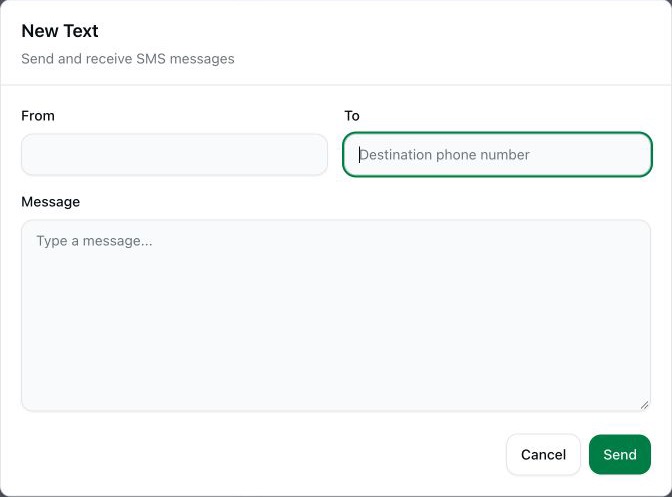
You can use a valid national-format number for the sender’s country, or an international number with a leading plus sign. The current implementation also recognizes international access prefixes 00, 011 and 0011. It validates and normalizes the result. If you are contacting another country, include its country code rather than relying on the sender’s national dialing plan.
A successful send request does not mean the recipient has received or read the message. Check the message’s reported status. Destination restrictions, opt-outs, account permissions and number capabilities can prevent sending.
Find and reply to a conversation
Use the conversation list and search controls to find the other party. Check which of your numbers the conversation belongs to before replying. Search and filter controls help narrow the visible message history by the options shown in the workspace.
For MMS, use the image attachment control when available and review the attachment before sending. An SMS-only number cannot send an MMS merely because an image can be selected in the browser.
Understand what is saved
- Message history: received and sent messages appear in the account’s conversation history. You do not need to press a separate Save button for every message.
- Unsent drafts: the portal keeps new-message and conversation drafts in this browser’s local storage when it is available. A draft is not a sent message or a guaranteed backup, and it does not automatically follow you to another browser.
- Saved replies: reusable response text is separate from the message history. Check inserted text and the recipient before sending it.
- Pinned messages: pin a message to find it again using the pinned-message view. Pinning does not send, duplicate or forward that message.
Organize follow-up
The available workspace controls can include labels, resolved/open status, internal notes and assignment. Use internal notes for context your team needs. Notes are not an SMS to the recipient, but they are account data and may be available to connected Browser Chat Apps authorized for that number.
Use the visible message actions menu for the action you need. Do not assume your browser’s ordinary right-click menu provides the same actions as the portal’s own message menu.
Removing messages or conversations
Review the message or conversation named in any deletion confirmation. Removing it from the account’s message history does not unsend it or remove a copy already received by another person. Do not use deletion as a way to recall a message.
Use SMS Chat in a connected browser app
The Browser Chat App provides a separate browser interface for the numbers assigned to it. It receives full conversation history and related data for those numbers. MultiOTP’s code-only workflow is different.
When something is missing or fails
- Check the selected sender, account and active search/filter controls.
- Check the number’s SMS/MMS capabilities and any outbound registration notice.
- If the destination is rejected, include the full international country code and review the sender’s country.
- If a draft is missing on another device, remember that unsent drafts are stored locally in the browser.
- Do not repeatedly resend a pending message; check its status first to avoid duplicates and additional charges.
The SMS Chat interface has no separate subscription. Phone-number rental and applicable SMS/MMS usage, registration and carrier charges still apply.