
What MultiOTP does
MultiOTP lets you use a rented MultiTEL number for website verification and receive short-lived verification codes on connected browsers and phones. It does not provide the complete SMS conversation history. For full conversations, use Browser Chat App or SMS Chat.
Some websites do not accept virtual phone numbers. Confirm that the website accepts your number before replacing an existing verification method. MultiOTP does not bypass a website’s own account or verification requirements.
1. Have an eligible number ready
You need an active SMS-enabled number in your MultiTEL account. Check Numbers → Inventory. If you need a new number, review its capabilities and charges in Rent numbers before ordering. An SMS-capable number can still be rejected by a particular website.
2. Install the appropriate app
- Open MultiOTP in the portal.
- For a browser, choose the published installation link shown for your browser. The current page offers the Chrome Web Store and Mozilla Add-ons.
- Complete the browser’s normal installation prompts, then find MultiTEL OTP AutoFill in the extensions menu.
- For a phone or tablet, use the connection invitation’s installation instructions on that device instead of assuming the browser extension installs on the phone.
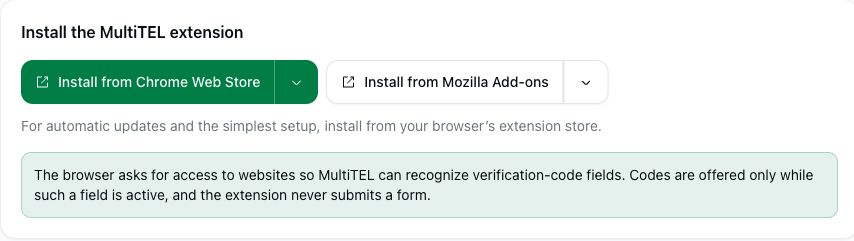
The extension requests website access so it can recognize verification-code fields. Codes are offered while such a field is active. The extension does not submit a form for you.
3. Create a connection invitation
- Under Connect a browser or phone, search your rented phone numbers if necessary.
- Select the checkboxes for the numbers this device should receive codes for.
- If you want the setup invitation sent to a cellphone, open Send the setup invitation to a cellphone (optional) and review the destination carefully. This is the phone receiving the setup invitation, not a substitute for selecting your rented MultiTEL numbers.
- Choose Create connection code. Use the displayed invitation and its expiry instructions to connect the intended browser or phone.
- Keep the code, invitation link and QR code private. Give each device its own invitation rather than reusing a code.
4. Use the number on a website
On a website that accepts your MultiTEL number, enter that number in the format the website requires. Request a verification code there. In the browser, keep the verification-code field active and use the offered code, then review and submit the website’s form yourself.
Receiving a code does not confirm that the website accepted your sign-in. Follow the website’s result and any additional verification steps.
Check and manage devices
Review Connected MultiOTP devices and use Refresh connected devices if needed. Check each device’s name, assigned numbers and last-connected information. Choose Manage numbers to adjust its assignments or Disconnect to remove a device that should no longer receive codes.
Sharing access to a number can let another person receive login codes for websites using that number. Assign only the numbers that person needs. Password Vault setup and vault-device pairing are separate from MultiOTP number pairing.
If no code appears
- Confirm that the website sent a code to the correct selected MultiTEL number and accepts that type of number.
- Check that the intended device is connected and assigned that number.
- Return to the verification-code field. Website-specific form behavior may affect recognition.
- Use a fresh invitation if setup has expired or was already used. Do not include live codes in support screenshots.
MultiOTP and AutoFill have no separate subscription. Phone-number rental and applicable SMS/MMS usage, registration and carrier charges still apply.