
Before you start
Open Passwords while signed in as yourself. The vault uses a separate passphrase from your MultiTEL portal login. Resetting your portal password does not unlock the vault.
The portal offers personal storage and separate shared vaults. Keep personal logins in your personal vault and use the sharing workflow when a family member or coworker needs selected logins. Do not share a vault recovery code to share one password.
1. Create your personal vault
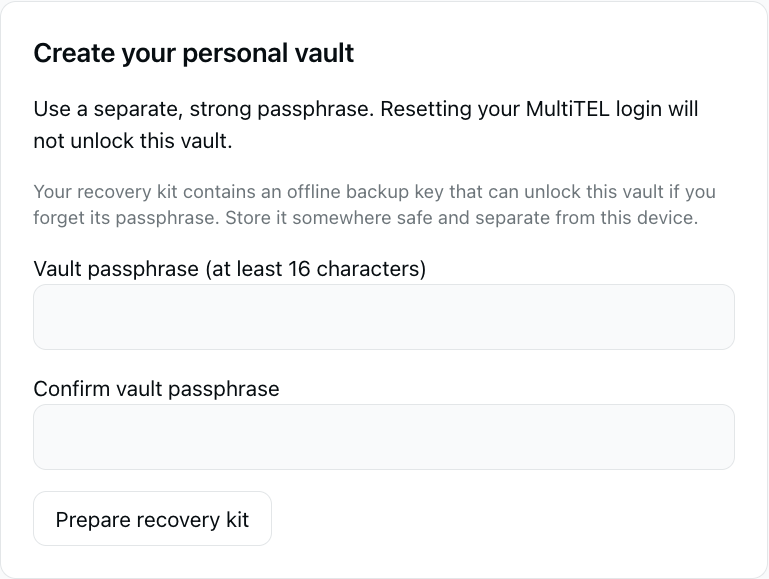
- Under Create your personal vault, choose a strong Vault passphrase (at least 16 characters) of at least 16 characters. Enter it again in Confirm vault passphrase.
- Choose Prepare recovery kit.
- Store the displayed Recovery code securely offline, separate from this device. Anyone with the code and access to the encrypted vault can unlock it.
- Only after storing it, select I stored my recovery code securely. and choose Create vault.
- Unlock the newly created vault with your vault passphrase.
MultiTEL cannot recover a lost vault passphrase or recovery code. Do not put either in screenshots, support tickets or notes inside the same vault you would need to unlock.
2. Add a saved login
- Unlock the vault and choose Add login.
- Check Save in and select the intended personal or active shared vault.
- Enter a recognizable Login name, the username or email, and the password. You can use Generate password when choosing a new password for a website.
- Enter the correct Login website (HTTPS). Add notes only when needed.
- Choose Save login and check that it appears in Saved logins.
Generating or saving a password here does not change the password at the website. If you are replacing a website password, complete that website’s own password-change flow and keep the saved login consistent with it.
Unlock and lock
Use your vault passphrase to unlock the vault. Choose Lock vault when finished. The portal also locks the vault when its document becomes hidden or the page is left. Return to the Passwords page and unlock again when needed.
Locking the portal vault is not the same operation as revoking a connected device. Review device access separately.
Connect a supported app
Under Browsers and mobile devices, enter a recognizable device name and choose Create device code. Enter the single-use code in the supported MultiOTP or SMS Chat app within the displayed ten-minute period. The app’s vault connection is separate from its phone-number/OTP connection.
Keep the device code private. Check the connected-device list afterward. Use Revoke device for an app that should no longer synchronize the vault. Revocation does not recall a password that a device or person already learned.
Share through a separate vault
Create a named shared vault for the intended family or team. Use its invitation workflow and give the single-use invitation code privately to the intended person. Joining and encrypted-access approval are separate steps: a request can remain pending until an owner approves access.
Check which vault a saved login belongs to before saving it. A personal login is not automatically shared merely because you created a shared vault. Use the member-management controls to review membership and permissions.
Recovery and access changes
On an existing vault, Unlock with recovery code instead lets you use the stored recovery code. Under Vault access and recovery, the portal can prepare a new passphrase and replacement recovery code. The prepared change is not activated until you confirm the replacement code is stored and choose Activate new passphrase and recovery code.
Keep recovery material safe throughout this process. Do not discard the current working details before the portal confirms that the new access details are active.
Common points of confusion
- The portal password does not unlock the vault: use the separate vault passphrase or your recovery code.
- A shared vault is still pending: ask its owner to complete encrypted-access approval.
- A login changed elsewhere: lock and unlock to load the current version before editing again.
- AutoFill is not connected: phone-number pairing and password-device pairing are different steps. See Browser AutoFill and MultiOTP.
Password Vault has no separate subscription. Phone-number rental and applicable SMS/MMS usage, registration and carrier charges apply separately when using messaging services.