
Before you start
The Browser Chat App brings SMS Chat to your browser and includes verification-code AutoFill. It is separate from the code-focused MultiOTP setup. Use an account-owned, active SMS-enabled MultiTEL number. A connected browser can read the complete SMS and MMS history, sender details, internal notes, saved replies, workspace data and related tickets for its assigned numbers. It may also send messages when the account permits sending.
Connect only a browser you trust. You do not need to give the app your portal password. If you only need verification codes, use the MultiOTP setup guide instead.
1. Install the Browser Chat App
- Sign in to the account owner’s portal and open Browser Chat App.
- For Chrome or Microsoft Edge, choose Install from Chrome Web Store. For another supported browser, use the installation choice shown on this page. Complete the browser’s normal installation prompts.
- Open the extension from your browser’s extensions menu. Pin it to the toolbar if you want easier access.
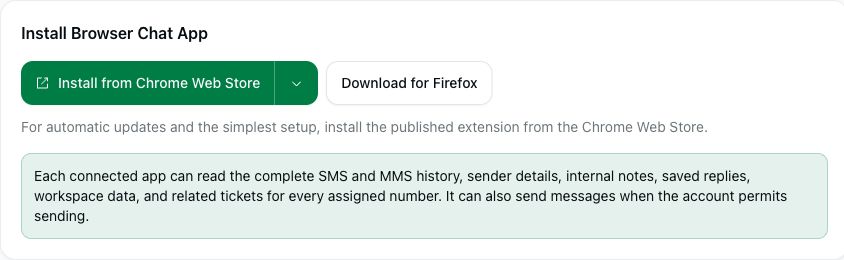
More installation options includes a manual local-package workflow for advanced use. Prefer the published store version for the simplest setup and automatic updates. Do not assume that every Chromium-based browser has the same installation steps.
2. Connect selected numbers
- Under Connect a browser, find your numbers. Search by number or description and use the page controls if necessary.
- Select the checkbox next to every number this browser should access. These are phone numbers in your MultiTEL account, not arbitrary numbers or a new password.
- Read the number’s capabilities. A number can be available for inbound messages while outbound sending is not yet enabled.
- Choose Create pairing code. Copy the one-time code privately.
- Open the extension, enter the pairing code and a recognizable device name, then connect. Use the code within ten minutes; an expired or already-used code cannot connect another browser.
Do not put a pairing code in a public screenshot, email thread or support post. It grants access to the numbers you selected. If the wrong person receives a code, do not use that invitation for your own setup; contact support if you need help checking whether a browser connected.
3. Check the connection
Open the app’s chat view and check that its number selection matches your intended numbers. In the portal, review Connected browsers. A successful connection does not override sending restrictions or prove that a particular destination accepts messages.
For everyday messaging, see Send and manage SMS and MMS conversations. Browser Chat App has no separate subscription. Phone-number rental and applicable SMS/MMS usage, registration and carrier charges still apply.
Manage or disconnect a browser
In Connected browsers, choose Manage numbers to change the selected browser’s assigned numbers and save the intended selection. You do not need to pair it again for this change. Check the updated number list afterward.
Choose Disconnect for a browser that should no longer access the account, and confirm the browser named in the prompt. Removing access does not recall information that the browser previously read.
If setup does not work
- No numbers appear: confirm that you are in the correct account and that the number is active and SMS-enabled. Clear the search, check other pages and review Numbers → Inventory. Renting a number does not guarantee every messaging capability.
- The code fails: check that you are connecting the Browser Chat App with its own code, within ten minutes, and that the code has not already been used.
- You can receive but cannot send: review the capability notice. US business outbound messaging can require an approved brand and active campaign.
- You cannot open the setup page: ask the account owner to manage the browser connection. Do not share the owner’s portal password.