
Use Abandoned queue calls to review callers who left a queue before an agent answered. You can also include calls that reached the queue's time limit. This is a history report: opening or filtering it does not call anyone back, send notifications or change queue routing.
Open the report
- In Hosted PBX, choose the PBX you want to review.
- Open Call Routing → Abandoned queue calls, or open Abandoned queue calls directly.
- Check the selected PBX before interpreting the results. The report is limited to that PBX.
Choose the dates
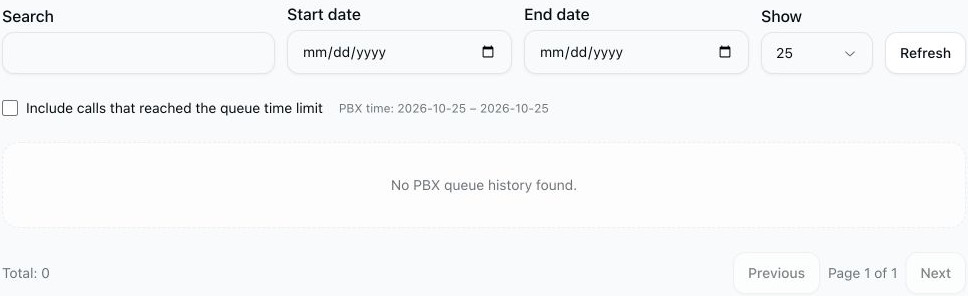
The report initially uses today's date on the PBX. The PBX time line shows the date range actually used, even when the date fields are blank. Dates and displayed call times use the PBX database's clock; do not assume they are your browser's local time or UTC.
- Set Start date and End date. Both boundary dates are included.
- For a single day, enter the same date in both fields. Entering just one boundary also selects that single day; it does not mean an open-ended search.
- Keep the end date on or after the start date. To return to the default PBX day, clear both fields.
Find the calls you need
- Search matches queue names and available caller numbers or names. It can also match a call reference if you have one. Results depend on the details recorded when the caller entered the queue.
- Leave Include calls that reached the queue time limit unchecked to show callers who left the queue. Select it to include queue timeouts as well. A timeout does not necessarily mean the caller hung up: the call may have continued to another configured destination.
- If the page was opened with a particular queue filter, use Clear: Queue to remove it and review all queues in the selected PBX.
- Choose Show to display 10, 25, 50 or 100 rows per page. Use Previous and Next for other pages. Changing a filter returns to the first page.
- Use Refresh when you need updated results. There is no need to change the queue configuration.
Understand the rows
The report shows the most recent entries first. A row groups matching history for a call in a queue; it is not a separate row for every underlying queue event. If a call has more than one matching event in the same queue, the report can combine them.
| Column | Meaning |
|---|---|
| Date/Time | The latest matching abandonment or included timeout for that call and queue, in PBX time. |
| Queue | The queue name. |
| Caller ID | The caller number and name, when available from the queue-entry record. Missing information is shown as unknown. |
| Wait in seconds | The recorded wait in seconds, when available. For grouped events the report uses the largest recorded wait, rather than adding the waits together. A missing value is unknown, not zero. |
| Status | Shows that the caller left, that the queue timed out, or both when the grouped history contains both kinds of event. |
Use the report to find calls worth investigating, then review the wider call history before deciding what happened to a caller. It is not a list of every unanswered call to your business, proof that a caller was never answered elsewhere, or a callback task list. Calls for queues that are no longer present in the PBX may not appear.
When no results appear
- Confirm the selected PBX and the PBX time date range.
- Clear the search and any queue filter, then check the relevant dates.
- Include queue timeouts if those are the events you want to investigate.
- No PBX queue history found. means that the current filters returned no rows. It does not establish that no calls reached the PBX.
- If the portal says history is unavailable or cannot be loaded, contact MultiTEL support. An unavailable history source is different from a successfully loaded report with no matching calls.
Caller information is private. Share only the details needed to investigate a call, and redact caller numbers and names from screenshots before sharing them publicly.